
Article Page Navigation
Estimated time to read:
The Article Page
The Article Page serves as the specific destination where the user finds the answer to their question or detailed information on a particular topic. While the Main Page is for navigation and discovery, the Article Page is designed for focused reading and information consumption.
Its purpose is to provide:
- A structured, distraction-free environment for users to engage with article content.
- Detailed Information Delivery: This is where the actual content (text, images, videos) resides. It is the end point of a user’s search or navigation journey.
- Contextual Navigation: Through elements like Breadcrumbs and Sidebars, the article page helps users understand where they are within the hierarchy of the related content and allows them to quickly jump to related articles in the same category.
- Metadata Visibility: It displays important administrative details that build trust and provide context, such as:
- Author Information: Shows who wrote the article.
- Posted/Updated Dates: Helps users determine if the information is current.
- Tags: Allows users to find other articles with similar specific topics.
- User Utility: It provides tools to help users utilize the information, such as a Print Button for physical reference or Back Buttons for easy navigation.
Key Elements of an Article Page
A standard article page is structured with several zones to enhance the reading experience:
- Header Zone: Contains the article title, breadcrumbs for easy backtracking, and meta-information like the author and date.
- Content Area: The main body of the article,
- Navigation Sidebars (Left/Right): Contains a category list or a table of contents to help users navigate long articles or explore the rest of the category without going back to the main page.
- Footer/Feedback Zone: Includes related articles and feedback forms.
Navigating The Article Page
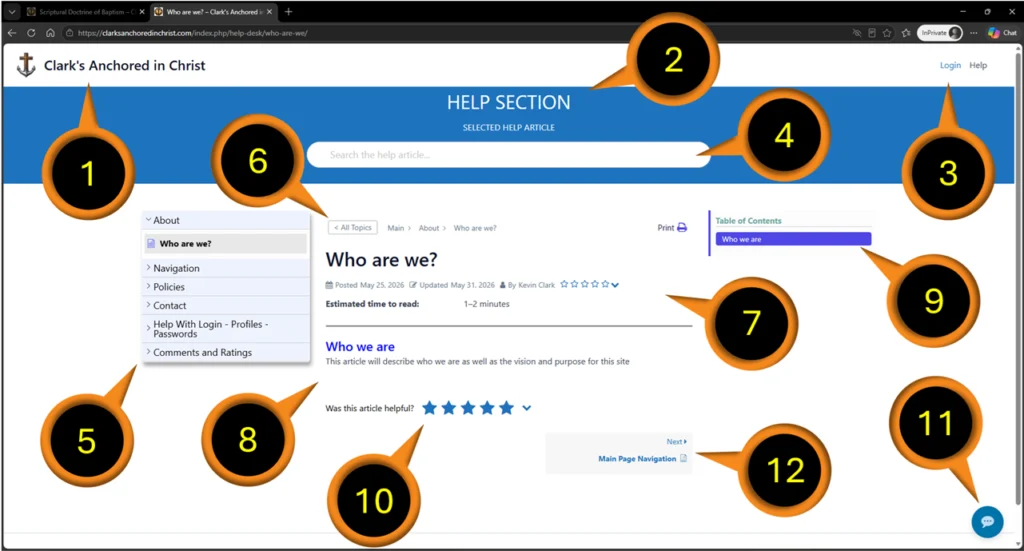
- Click on Clark’s Anchored in Christ logo to display Home Page
- Location Indicator: Articles Section (Article Page)
- Menu Options
- Non-Registered User Menu = Login and Help
- Registered User Menu = Login, Account and Help
- Advanced Article Search Bar
- Collapsible Category Tree / Sidebar Menu
- Meta Data + Bread-Crumbs + User Utilities
- Article Header (Article Author, Post / Revision Date, Tags & Ratings)
- Article Contents
- Article Table of Contents (for navigating contents)
- User Feedback through Article Ratings
- AI Assistant
- Previous & Next Article Buttons
Clark’s Anchored in Christ logo
The Clark’s Anchored in Christ logo also serves as a Home button. Clicking on the logo will return you to the Main / Category Page of Christian Related Content.
Location Indicator
Serves to indicate which page – the Main / Category Page or the Article Page – as well as which content the user is viewing.
Menu Options
Non-Registered users will have the option to select “Login” + “Help” from the menu. Non-Registered users have access to all Categories and Articles but do not have the ability to leave comments. If a Non-Registered user wishes to become a Registered user then they can click on “Login” and then select “Register”.
Registered users (if logged in) will have the option to select “Account” + “Login / Logout” + “Help” from the menu. Registered users can use the Account menu to view or change their profile and or change their password.
The above Menu Options are available regardless of which content or page the user is viewing
Advanced Search Bar
While the standard Basic Search Bar (Found on the Main / Categories Page) offers a clean and functional interface, the “Advanced Menu” provides significantly more control over how a user navigates and searches article content. Users can look for key words or phrases inside the article and every instance of that word or phrase found within the article will be highlighted. The search will likewise return a list of other articles that contain the elements the user searched for.
Sidebar – Collapsible Navigation Tree
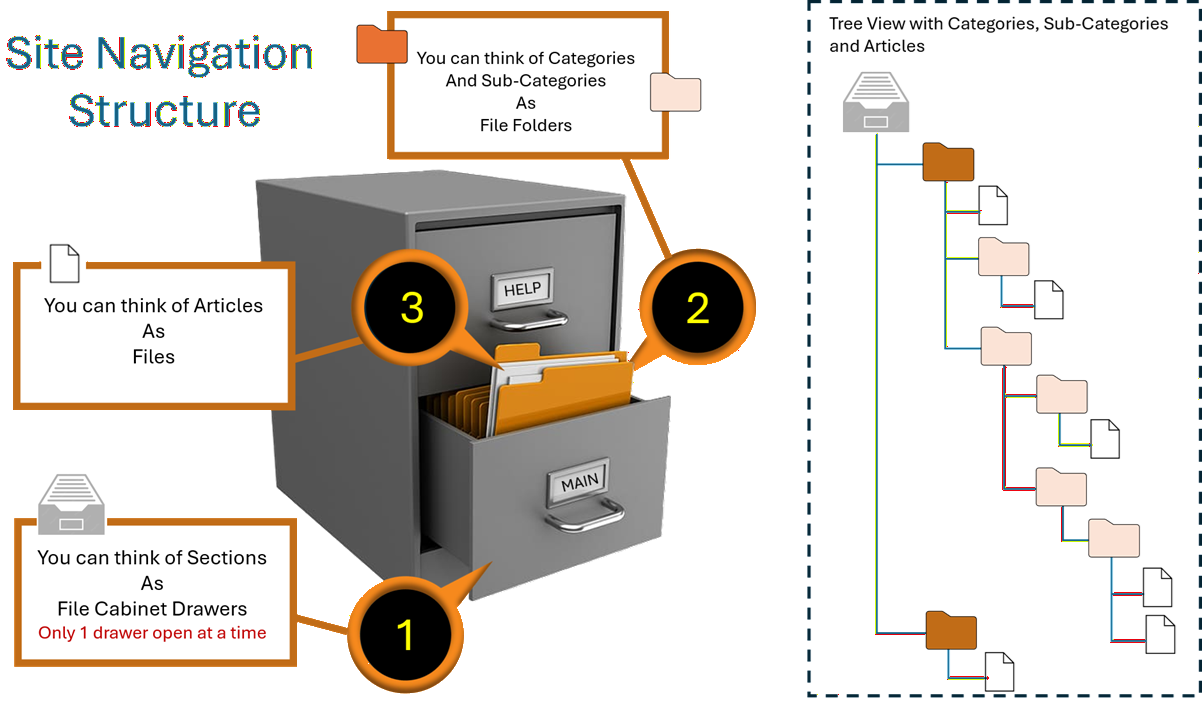
The Sidebar offers users a collapsible / accordion-style navigation tree, in which they can drill down through the various categories and sub-categories to find articles. Some articles may be appear under two or more categories depending on its relevance to each Category. I have tried include a natural hierarchy while at the same time displaying some of the more popular categories at the top level of the collapsed navigation tree. While that may change, the tree will still function well for those used to this kind of drill-down navigation. For those unfamiliar please see the next image.
Metadata: Bread-Crumbs, User Utilities + Header
- Breadcrumbs: While often categorized as a navigation element, breadcrumbs are a form of metadata that shows the article’s location within the Related Content . It allows users to quickly jump back to a broader category if the current article doesn’t fully meet expectations.
- Tags: Tags act as cross-reference metadata. They link articles with similar specific topics that might be in different categories, helping users discover related content they might have otherwise missed.
- Author Information: Displaying the author shows accountability. Users are more likely to trust technical documentation when they can see it was written by a verified expert or team member.
- Created On & Updated On Dates: This is perhaps the most critical metadata for a knowledge base. Users need to know if the instructions they are following are still relevant. An “Updated On” date reassures users that the content has been recently reviewed and reflects the current version of a product or service.
- Article Views: Showing view counts can indicate the popularity or importance of an article. For users, it signals that many others have found the article relevant; for administrators, it helps track which topics are most frequently accessed.
- Print Button: This allows users to easily take the information offline. For technical manuals or long-form guides, this is a highly valued utility feature.
- Estimated Time to Read: Provides Users a heads-up to the length of a given article.
Article Contents
- May include written works, images, videos, audio files etc.
- Hovering over any verse will reveal a popup that contains the verse. A special thanks to Blue Letter Bible for allowing me to piggy-back / harness that functionality and saving me from reinventing the wheel. The Blue Letter Bible Website has a wealth of tools that will be helpful to anyone seeking online resources to enhance their study of God’s word.
- This site has a growing glossary of terms. As I add to this glossary this site will find the first instance of the word or phrase in a given article and highlight it with an underline. When a user hovers over the highlighted word or phrase, the definition of that word or phrase will popup.
- There are other popups and expansions available throughout various articles. I suggest that if a user see an arrow or a word or phrase highlighted or underlined that they hover their mouse over it or click on it.
- I am looking to add more and more features that will be helpful in testing articles to Scripture and for study.
Article Table of Contents
Provides users to jump to specific content within the Article
User Feedback
- Ratings: All users (Registered and Non-Registered) have the ability to rate an article from 1/2 star to a full five stars.
- Comments: Registered users will be able to leave a comment on any article where comments are enabled. For further IMPORTANT information on comment use and policy please see the Help Article on Comment Policy and Use.
AI Assistant
Thanks to Google’s generous free tier use of their AI engine, I am able to provide users with AI assistance, the ability to ask questions regarding content related to this site. Under the free-tier plan I am allotted limited usage per day. However, I will be monitoring its usage and again, if warranted I may very well look into a plan that offers more availability.
This AI agent utilizes natural language understanding (intent-based search)
Unlike traditional search tools that rely on exact keyword matches, AI interprets the intent behind a user’s natural language question. This allows it to surface relevant content even when the user doesn’t know the specific terminology, improving the discoverability of niche or complex information.
It provides content-aware responses
AI can be trained directly on your existing WordPress posts, pages, FAQs, and Knowledge Base articles. This ensures the answers it provides are context-specific and tailored to your unique documentation, rather than being generic AI responses.
It uses on-site multi-source integration
AI can synthesize information from multiple sources—such as PDFs, articles, and custom post types—to provide a unified answer. An AI Advanced Search can run multiple prompts in parallel to present a comprehensive overview, including summaries, related questions, and glossary terms.
WARNING ON USE OF AI
I cannot guarantee the accuracy of the answers to every question a user may ask. It should however provide site resources in which it formed it answers and these resources should be confirmed. Likewise, just as I ask each person to test everything they read on this site to the word of God, so too should everything that AI provides as an answer to your questions equally be tested to God’s word.
You have a responsibility to take an active role in your faith, so be like a Berean and joyfully listen to others, test everything -without exception – to God’s word and remember to share with others in hopes that they may do the same.
Previous and Next Article Buttons
If other related articles within the Article Category are available these buttons will appear accordingly.